
• Logo
    Canonical Identity
  • More resources
    • Discourse
    • Matrix
    • GitHub
Contents Menu Expand Light mode Dark mode Auto light/dark, in light mode Auto light/dark, in dark mode Skip to content
Canonical Identity documentation
  • Tutorials
    • Get started with the Canonical Identity Platform
    • Get started with the Canonical Identity and Access Proxy
    • Charm-focused tutorials
      • Kratos
      • Hydra
      • OpenFGA
      • GLAuth
      • GLAuth Utils
  • How-to guides
    • Use the Kratos local identity provider
    • Manage external identity providers
    • Onboard an application with Charmed Hydra
    • Integrate your OIDC-compatible charm
    • Integrate your charm with Identity and Access Proxy
    • Integrate with OpenFGA
    • Manage users
    • Link Accounts
    • Integrate with the Canonical Observability Stack (COS)
    • Perform database migration
  • Reference
    • Architecture overview
    • Self-service flows
      • Login Flow
    • Observability in Identity Platform
      • Observability setup in Charmed Hydra
      • Observability setup in Charmed Kratos
      • Observability setup in Charmed Identity Platform Login UI
      • Observability setup in Charmed OpenFGA
    • Charms
      • Kratos
      • Hydra
      • Login UI
      • Kratos External IdP Integrator
      • OpenFGA
      • OAuth2 Proxy
      • GLAuth
      • GLAuth Utils
  • Explanation
    • Understanding OAuth 2.0 and OpenID Connect (OIDC)
    • Security in Canonical Identity Platform
      • Charmed Hydra Security
      • Charmed Kratos Security
      • Charmed OpenFGA Security
      • Charmed Login UI Security
      • Charmed Kratos External IdP Integrator Security
Back to top
Contribute to this page

Link Accounts

Account linking allows you to connect your social sign-in accounts (e.g., Google, GitHub) to your Identity Platform account as an additional authentication method. This enables seamless sign-in using multiple identity providers.

Prerequisites

Account linking is available only if the built-in identity provider is enabled in the Identity Platform. For more details, refer to this guide.

Linking a Social Sign-In Account

  1. Go to the Connected accounts page in your user settings.

  2. Select Connect for the social provider you want to add.

  3. Unless you’re already signed in, you’ll need to authenticate with the external identity provider to confirm the linking action.

  4. After successful authentication, the social account will appear as connected.
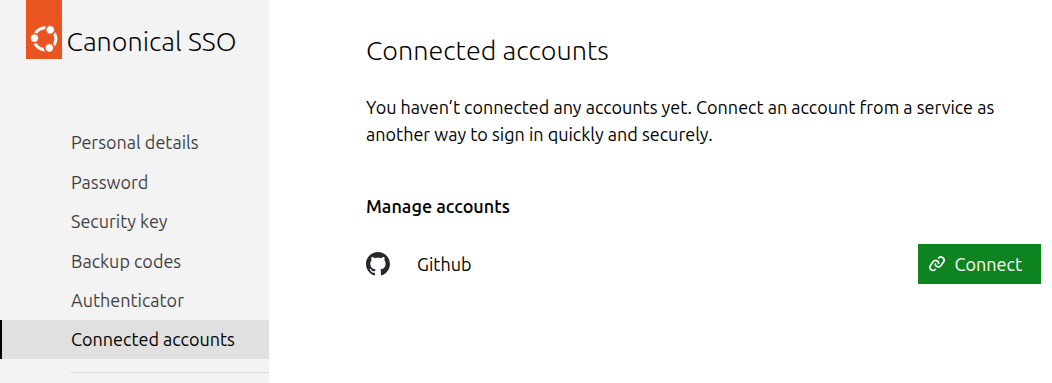
Manage connected accounts

Unlinking a Social Sign-In Account

You can unlink a linked account directly from the Connected accounts page in a self-service manner. You can also unlink accounts using a Juju action in Charmed Kratos. For detailed steps, see the How to manage users guide.

Limitations

  • You can only link accounts from available identity providers that you haven’t previously registered with.

  • Each social sign-in account can be linked to only one user (identity) in Kratos.

© 2026 CC-BY-SA, Canonical Ltd.
Last updated on Feb 20, 2026
Contents
  • Link Accounts
    • Prerequisites
    • Linking a Social Sign-In Account
    • Unlinking a Social Sign-In Account
    • Limitations